
Alert Audio Troubleshooting
Last updated July 18, 2024.
Blackline Live’s alert banner allows monitoring centers and self-monitored customers to quickly managing incoming alerts.
When the portal audio is muted, alerts may go unnoticed and unacknowledged, which may delay a worker getting help.
If you cannot hear alerts from the portal and/or you receive the "Your audio settings may be preventing you from hearing alerts coming into the portal" message in a yellow banner, your system might be muting the alert audio. Please review and check all the following settings to ensure you can hear alerts in Blackline Live.
Monitors and Speakers
If your computer is connected to external monitors or speakers, output volume may be controlled through the devices. Even if your computer or operating system volume is on, muting external speakers will mute alerts from Blackline Live.
Check your speakers and monitor for external volume controls and ensure the volume is on and that they are not set to mute.
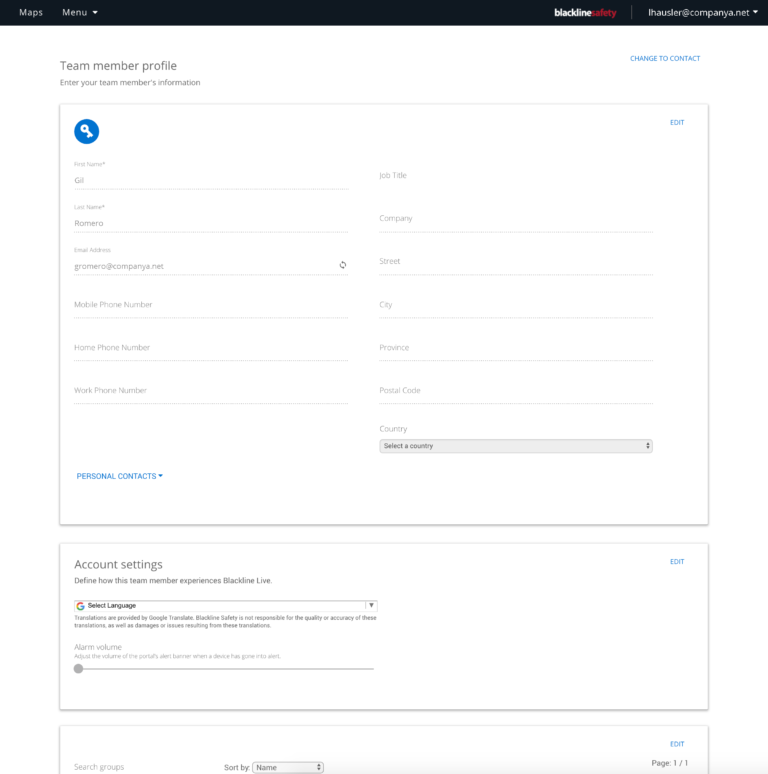
Blackline Live Account Settings
Settings within your Blackline Live account that can influence the volume of alerts in the portal.
- Select Save.
Browser Settings
When you access Blackline Live through an internet browser, it is possible that alerts are not audible because your browser tab has become muted. How you access your browser volume settings depends on which browser you use.
Browser Autoplay Policy
Some browser autoplay policies make it so your browser will not allow website audio. This means that by default, Blackline Live's alert audio may be disabled. You must enable autoplay on your browser to ensure that you can hear alert audio from Blackline Live.
Google Chrome
- While signed in to Blackline Live, select View site information, located directly to the left of the URL in the address bar.

- In the Permissions section, select .

Safari
- Change the Auto-play setting to Allow All
Auto-Play. The setting will only apply to Blackline
Live.
Mozilla Firefox
- While signed in to Blackline Live, select the Permissions icon, located directly to the left of the URL on the address bar.
- Select the Autoplay drop-down, then select Allow Audio and Video.
- Return to Blackline Live and reload the page.
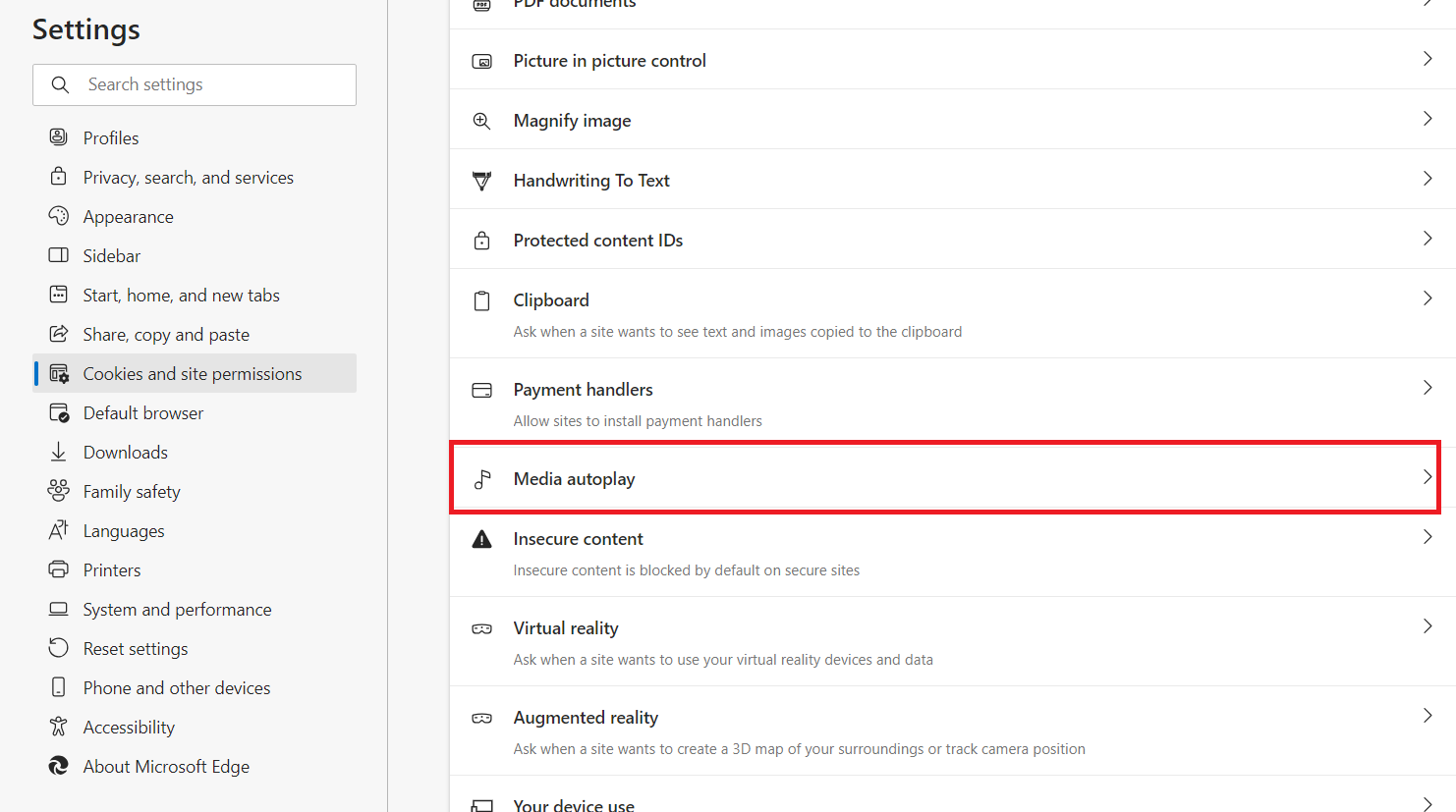
Microsoft Edge
-
Select Media autoplay from the main
pane.
-
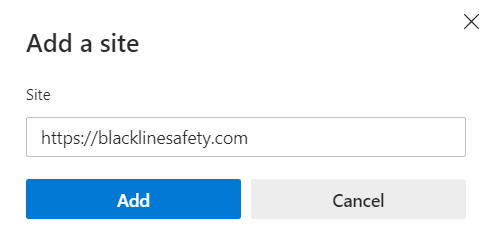
Type or copy and paste https://blacklinesafety.com into the Site field,
then select Add.
Browser Plug-ins
Ensure if you have any browser plug-ins that mute noise from your browser — like Muter on Firefox or MuteTab on Chrome — that they are turned off while using Blackline Live. Having these plug-in features activated while using Blackline Live will result in the alert sounds being muted.
Operating System
Volume can be controlled through your operating system — these levels will dictate how much volume is being generated on your computer. You can manipulate these settings through your operating system preferences.
On Mac Computers
- Check the output volume slider at the bottom of the window to
ensure that the slider is not at the far left and that the Mute
checkbox is not selected.
On Windows Computers
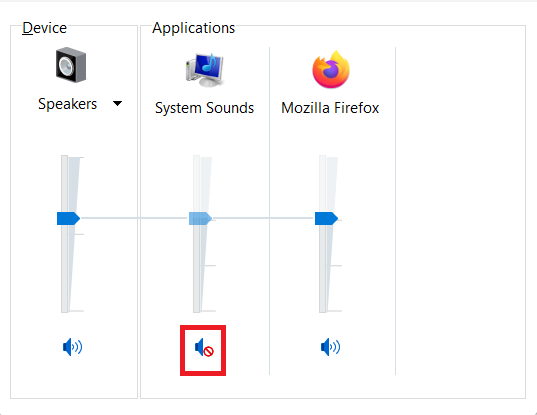
Windows operating systems allow you to manipulate each browser’s volume settings through the operating system preferences. These settings allow you to manipulate each browser’s volume from a control panel, rather than from the browser itself.
-
In the Sound section, select Adjust system
volume. Use the volume mixer to manipulate external
speakers and system sounds as well as individual browsers.
If your keyboard also has volume control keys, you can use these to adjust your operating system volume.