
Implementing AlertLink
This article describes how to implement AlertLink in Blackline Live and enable AlertLink functionality for G7c, G7x, and EXO devices.
AlertLink gives your G7c, G7x, and EXO devices the ability to share notifications with other devices during high urgency events. With the feature enabled, G7c and EXO device users will be notified if a nearby device has gone into alert, which keeps your workers more informed of their surroundings and gives them the ability to come to the aid of team members when needed. It is important to note that G7x devices can trigger AlertLink messages, but cannot receive them at this time.
AlertLink is only available for self-monitored or Blackline-monitored organizations. AlertLink is not available for System Access plans or for G6 devices.
Understanding AlertLink
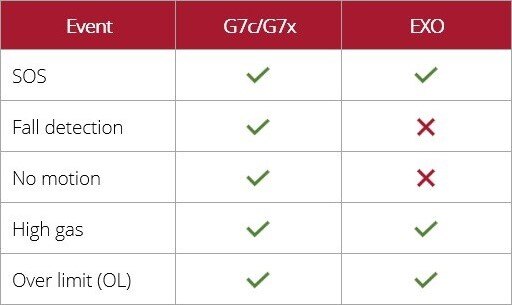
AlertLink messages are sent by Blackline Live. When AlertLink is enabled and a G7c, G7x, or EXO device detects a high urgency event (see table), Blackline Live will determine which G7c or EXO devices in the same organization are located within the configured proximity radius of the device in alert, using the last known location of a device. If any devices are detected, Blackline Live will send an automated message to each of the nearby devices.
G7x devices can trigger AlertLink messages but are unable to receive them.
AlertLink is triggered by the following high urgency events:
AlertLink messages are similar to a text message and trigger a unique light and sound pattern. The message will include the following information:
Alert type
Gas type (if applicable)
Assigned user of the origin device
Origin device ID (if device is not assigned to a user)
Origin device type
Other device information
AlertLink messages are sent to all G7c devices in the configured proximity. In Blackline Live, you can choose to include or exclude EXO devices from receiving AlertLink messages. For more information, refer to the Blackline Live Technical User Manual.
Configuring AlertLink in Blackline Live
AlertLink is enabled in the Alert profile in Blackline Live. If you want a device to prompt Blackline Live to send AlertLink messages, you will need to add the device to an alert profile that has AlertLink enabled.
AlertLink messages are received by all G7c devices in the configured proximity.
Once you have enabled AlertLink, in the Alert profile, you can define the Message radius and determine whether to exclude EXO devices from receiving AlertLink messages. The Message radius can be configured from 30 meters (100 ft) to 5,000 meters (16,000 ft) and can be modified in increments of 10 meters or 50 feet.
For full instructions on configuring AlertLink, refer to the Blackline Live Technical User Manual.
Acknowledging AlertLink Messages
You can acknowledge AlertLink messages in three ways:
-
Manually acknowledge the notification on the device.
Note:Unacknowledged messages received by EXO will automatically time out after 90 minutes.
- Clear the notification remotely from Blackline Live.
- Configure AlertLink notifications to automatically clear after a specified time period (EXO only).
Manually Acknowledging AlertLink Messages
If your device receives an AlertLink message, follow your company's safety protocol for responding to high urgency events. When it is safe to do so, press and hold the up and down arrow buttons for 3 seconds to acknowledge the AlertLink message notification. For full instructions, refer to the EXO Technical User Manual or the G7 Technical User Manual.
Remotely Clearing AlertLink Messages
On the Alerts page in Blackline Live, the AlertLink Messages tab displays a list of all devices with active AlertLink messages. Monitoring personnel can use this page remotely clear AlertLink notifications on specific devices. For full instructions, refer to the Blackline Live Technical User Manual.
Configuring How AlertLink Messages Are Received by EXO
You can configure how AlertLink messages are received by EXO in the Configuration profile. AlertLink messages can be configured to persist for up to 90 minutes until they are manually acknowledged on the device, or the notification can be configured to clear automatically after a pre-set timeout period of 90 minutes or less. For full instructions, refer to the Blackline Live Technical User Manual.